For accepted app testers
How to sign in to the app.
Your account has already been created, with the email address from your application. All you do is set your password, install the app and sign in. It takes about five minutes.
- Pro free until 22 Jan 2027
- iPhone and Android
- No subscription
The steps at a glance
- Open the email“You’re in” with the button “Set your password & get started”.
- Set your passwordAt least 10 characters, one letter and one digit.
- Install the appiPhone via TestFlight, Android via Google Play.
- Sign inEmail and password, or Apple or Google with the same address.
- Get startedThe app shows “App test until 22/01/2027”, Pro is unlocked.
Step 1
Open the email “You’re in”.
Once you’re accepted, you get two emails at the address from your application. The sender is GetDogWalkers (hallo (at) getdogwalkers.com).
- “You’re in: the GetDogWalkers app test …”Your confirmation. It contains the button “Set your password & get started”. It is valid for 7 days and works only once.
- “Your invitation to the app test …”The invitation for your device: on iPhone the link to TestFlight, on Android the links to the tester group and to the test page on Google Play.
Already had a GetDogWalkers account?
Then the confirmation has no button but says “Sign in with your existing account”. We’ve unlocked the app test for that account. Skip step 2 and sign in with your existing password.
Good to know
We never send you a password by email. You set your password yourself, and only you know it.
No email? Check your spam or promotions folder. More below under Help with problems.
Step 2
Set your password.
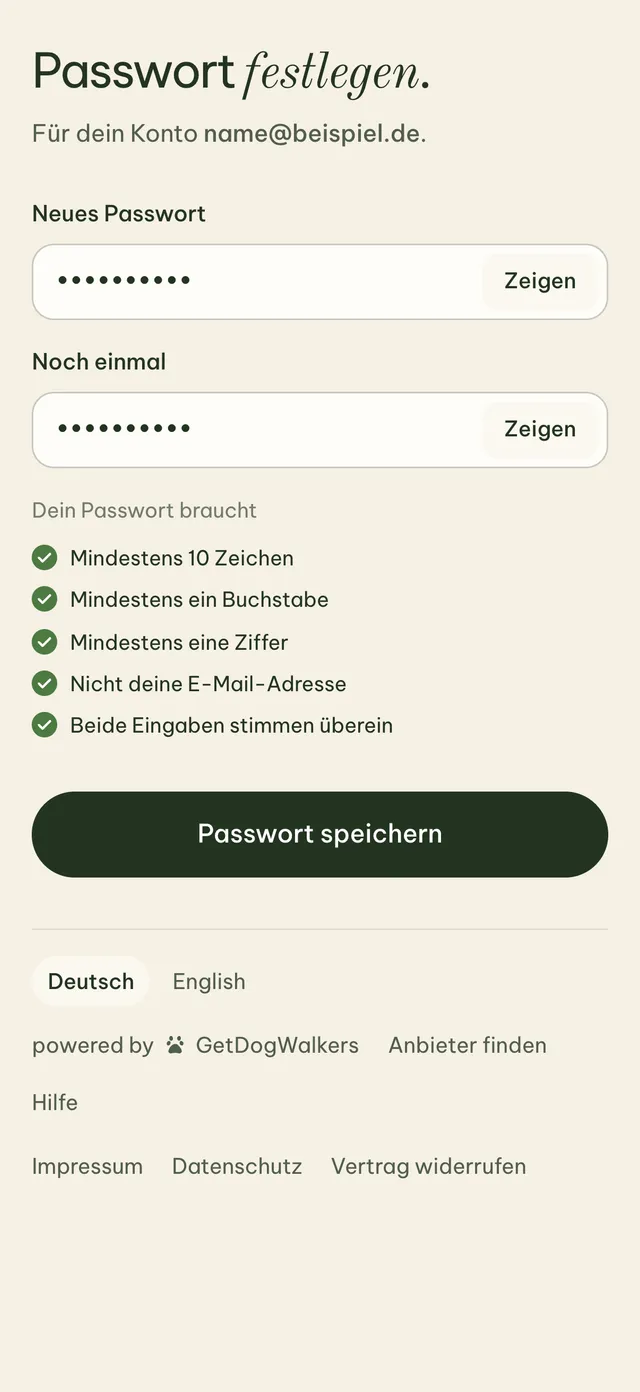
Tap “Set your password & get started” in the confirmation. The page “Passwort festlegen” (set password) opens on app.getdogwalkers.com with your email address. The page is currently in German, the labels are translated below.
- Enter your passwordIn the field “Neues Passwort” (new password), then the same again in “Noch einmal” (once more). “Zeigen” (show) reveals what you typed.
- Watch the rules turn greenBelow the fields every rule you meet turns green. The button only works once all of them are met.
- “Passwort speichern” (save password)Afterwards the page says “Passwort festgelegt.” (password set). Your account is ready.
Your password needs
- At least 10 characters
- At least one letter
- At least one digit
- Not your email address (nor the part before the @)
- Both entries match
Prefer Apple or Google?
Then you can also skip this step and sign in with Apple or Google in step 4, as long as they use the same email address.
Step 3
Install the app.
The test version doesn’t come from the regular App Store but through Apple’s and Google’s testing channels. You find the link in the email “Your invitation to the app test”.
iPhone
via Apple’s TestFlight
- Get TestFlightInstall Apple’s free TestFlight app from the App Store if you don’t have it yet.
- Open the invitationOn your iPhone, tap “Open TestFlight” in the invitation, then “Accept” in TestFlight.
- Install the appTap “Install”. GetDogWalkers then sits on your Home Screen.
Updates to the test version come through TestFlight. Open the link directly on your iPhone, not on a computer.
Android
via the Google Play test
- Join the groupOpen our tester group from the invitation and tap “Join group”.
- Confirm your participationOpen the test page on Google Play and tap “Become a tester”.
- Install the appInstall GetDogWalkers from Google Play. If it doesn’t show up right away, try again after a few minutes.
Important: open the group, the test page and Google Play with the same Google account, the one signed in to the Play Store on your phone.
Step 4
Sign in to the app.
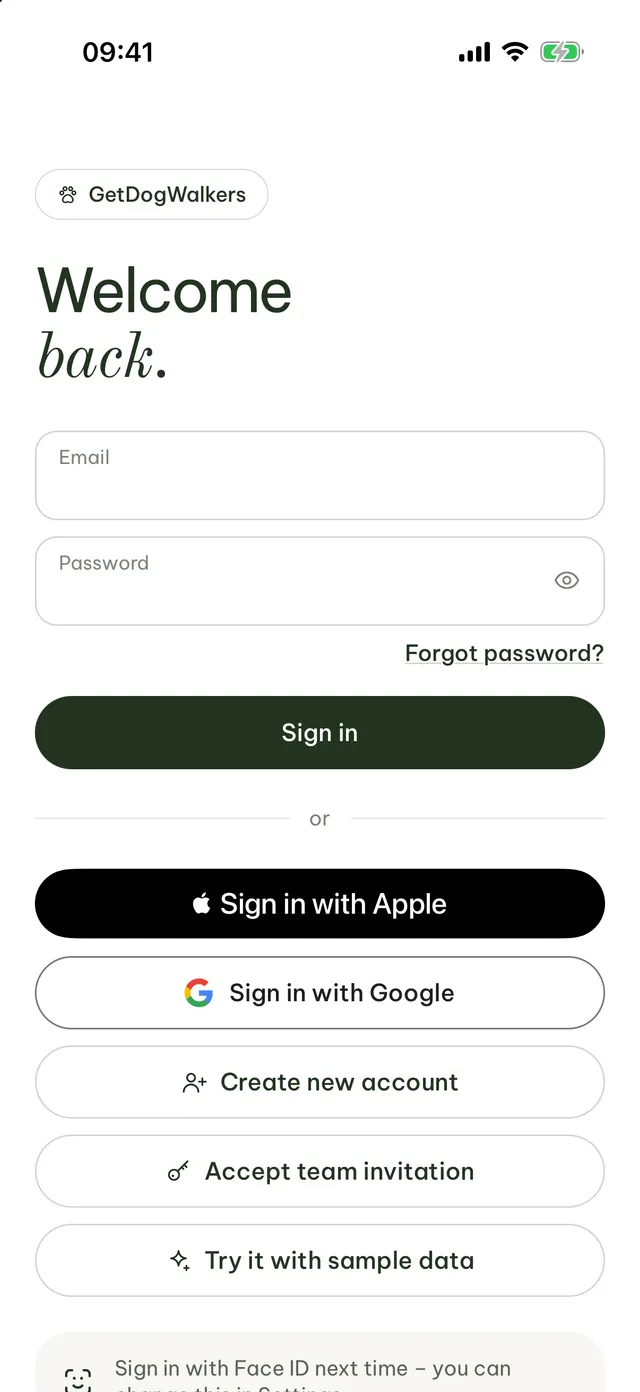
Open GetDogWalkers and tap “Sign in” on the welcome screen. Then you have two ways.
- With email and passwordEnter the email address from your application and the password from step 2, then tap “Sign in”.
- Or with Apple or Google“Sign in with Apple” (iPhone only) or “Sign in with Google”. This works if your Apple ID or Google account uses the same email address. The first sign-in connects Apple or Google to your account. If you’ve already set a password, the app asks for it once.
- Next time with Face IDBelow the sign-in it says “Sign in with Face ID next time”. You switch this on in the app under Settings. On Android it works with fingerprint or face unlock.
Please don’t tap “Create new account”
Your account already exists, with Pro for the test. A new account would be a second, empty business without the test access. “Try it with sample data” only shows made-up data on your device and isn’t your account.
With Apple: share your email
If Apple asks whether to share or hide your email address, choose “Share My Email”. With a hidden address the app can’t find your account.
Step 5
What you see afterwards.
After signing in you land on Today, with your business as it was created from your application.
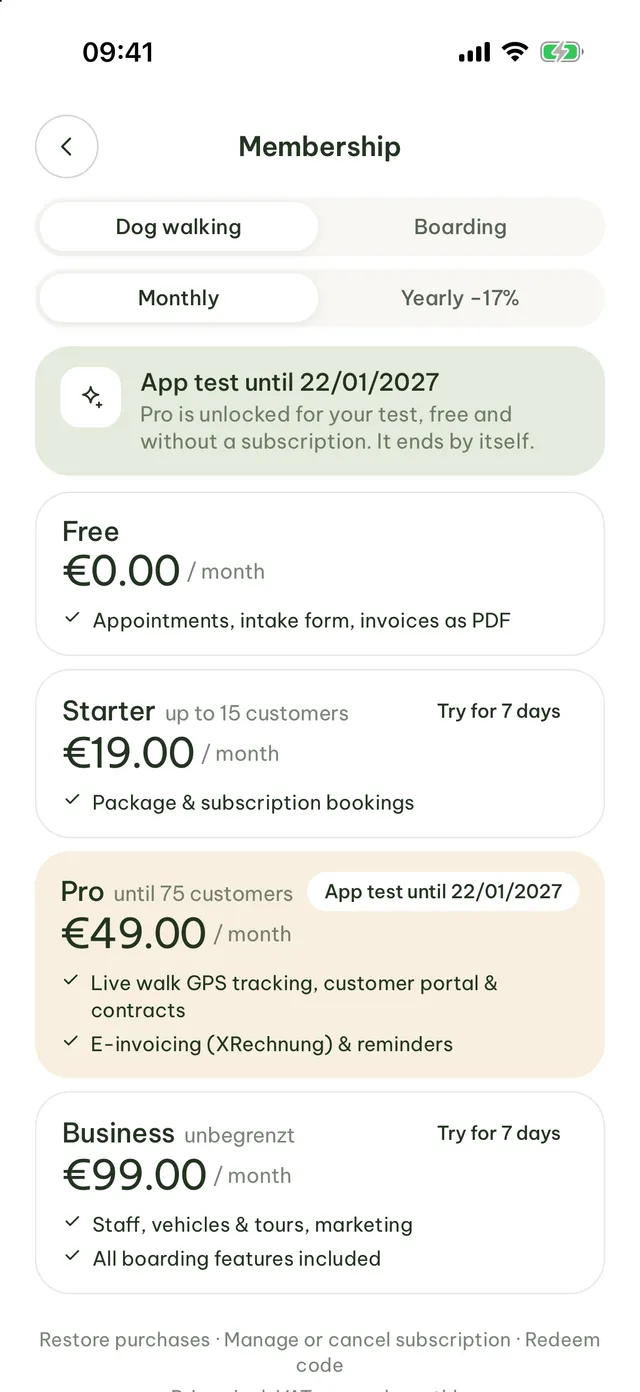
- “App test until 22/01/2027”Under More › Membership, in your profile and in the settings, “App test until 22/01/2027” appears next to your plan. Pro is unlocked, free and without a subscription.
- Set up your business and get goingUnder Profile you enter business details and prices, with the plus you add customers and dogs. What to try first is in the tester handbook.
- At the end of the testIn the last 7 days the app shows a notice. On 22 January 2027 the test ends by itself, your account and data stay. Your personal code for 50% off for 3 months comes by email and in the app.
Help with problems
Something not working? These are the most common stumbling blocks. If none of this helps, just reply to one of our tester emails.
The link has expired or is “no longer valid”
The set-password link is valid for 7 days and works once. Your account still exists. Open the app, tap “Sign in”, enter the email address from your application and tap “Forgot password?”. A new link comes by email from noreply (at) getdogwalkers.com. That link is valid for 30 minutes.
Or reply to the email “You’re in” and we’ll send you a new link.
I didn’t get an email
Check your spam or promotions folder and search for “GetDogWalkers”. Tester emails come from hallo (at) getdogwalkers.com, the “Forgot password?” link from noreply (at) getdogwalkers.com. It helps to add both addresses to your contacts.
We only write to the address from your application. If you applied with a different address than you think, check that inbox.
Signing in doesn’t work
Use exactly the email address from your application, without a space at the end. If you haven’t done step 2 yet, there is no password yet: set your password first or use “Forgot password?”.
If the app asks for a code, two-step verification is switched on for your account. Enter the code from your authenticator app.
My Apple ID or Google account has a different email address
Then sign in with email and password, that always works. “Sign in with Apple” and “Sign in with Google” only find your account through the same address. If you accidentally created a new, empty account that way, sign out and sign in again with email and password.
For TestFlight the address of your Apple ID doesn’t matter. On Android the Google account you join the group with must be the same as the one in the Play Store on your phone.
If you’d like to use a different address for the test, reply to the email and we’ll help you.
TestFlight says “not available” or that the beta is full
Open the link from the invitation directly on your iPhone after installing TestFlight. Keep iOS up to date. Right after a new build the test version can be unavailable for a short time until Apple has approved it. Try again later.
If it says the beta is full or isn’t accepting new testers, reply to the invitation and we’ll sort it out.
Google Play says “App not available”
Usually one of the first two steps is missing: did you join the tester group and tap “Become a tester” on the test page, both with the Google account signed in to the Play Store? If there are several Google accounts on your phone, switch to the right one in the Play Store at the top right.
After joining it can take a few minutes until the app appears. Then open the test page again and tap the link to Google Play there.
The app shows Free instead of Pro
Then you’re probably signed in with a different account, for example through Apple with a hidden email address. Sign out and sign in again with the address from your application. If it still doesn’t say “App test until 22/01/2027”, reply to a tester email.
Face ID isn’t offered
You switch on Face ID or fingerprint after your first sign-in, in the app under Settings. On iPhone, Face ID must be set up in the iPhone settings.
We’re here for you.
The quickest way is to reply to one of our tester emails. We read every message ourselves.
Reply to a tester email or write to support (at) getdogwalkers.com
Typical response time: 1 to 2 working days, Monday to Friday. The testing terms for the app test apply. More about the test: App test and tester handbook (PDF).